How to Set Up the CPay Card Payments Plugin For WooCommerce

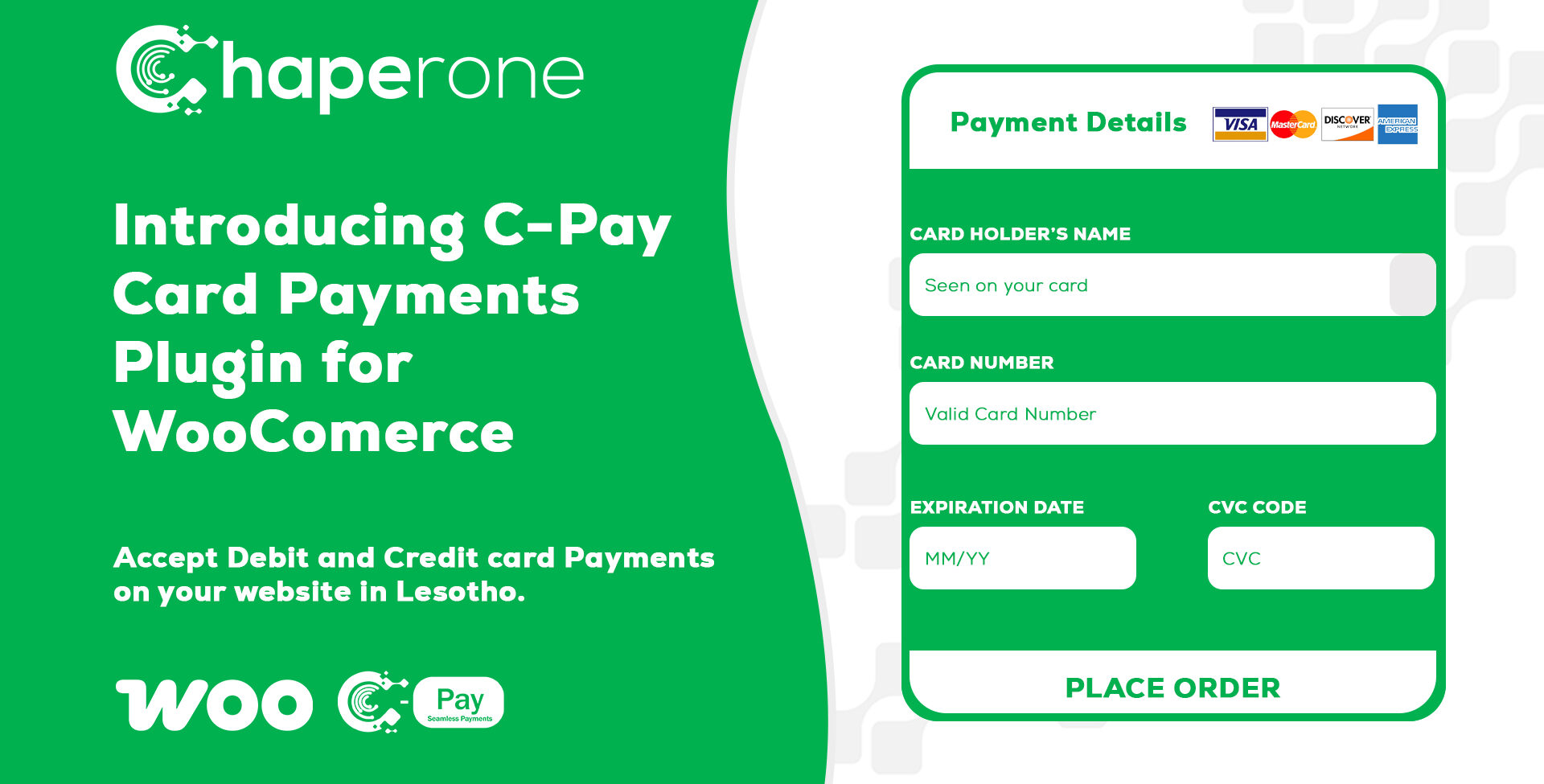
In today’s digital economy, providing a seamless checkout experience can make all the difference to your online business. That’s why we’re excited to introduce the CPay Card Payments Plugin for WooCommerce — a powerful extension designed to help WooCommerce store owners accept credit and debit card payments (Visa & Mastercard) securely and effortlessly in Lesotho.
Whether you’re a small business owner, an eCommerce entrepreneur, or a developer building online stores for clients, this plugin brings a trusted, local payment solution directly into your WordPress environment.
Why This Matters?
WordPress is one of the most popular platforms in the world, powering a large portion of eCommerce stores globally. In Lesotho and across Africa, many businesses rely on WordPress and WooCommerce to run their online shops. Until now, integrating card payments directly into local WooCommerce stores has been a challenge — especially without relying on third-party international gateways that charge high fees or require complex setup.
The C-Pay Card Payments Plugin changes that.
📌 How to Install & Configure the CPay Card Payments Plugin for WooCommerce
This guide walks you through each step of setting up the new C-Pay Card Payments Plugin, so you can start accepting Visa and Mastercard card payments on your WooCommerce store quickly and securely.
✅Prerequisites
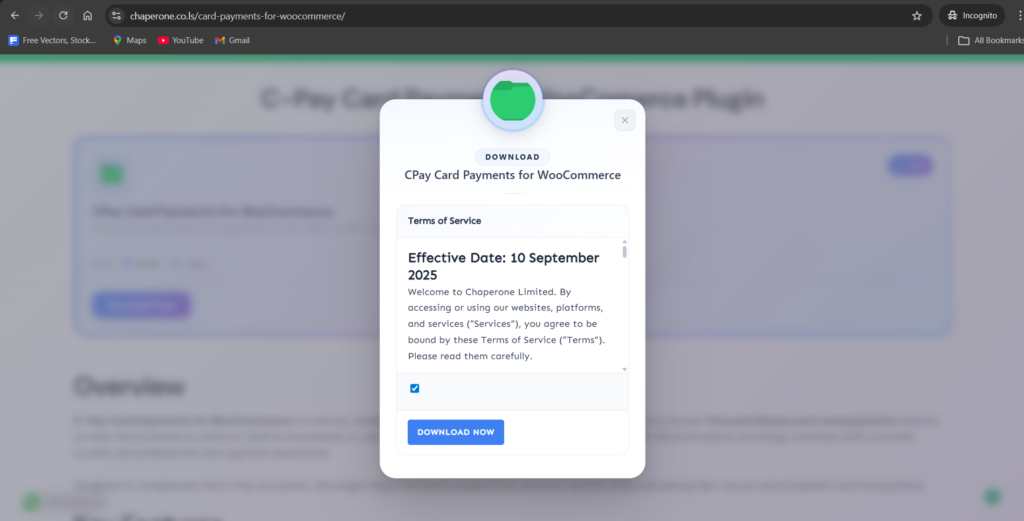
1. Download the Plugin
- Visit the official Card Payments Plugin Page: https://chaperone.co.ls/card-payments-for-woocommerce/
- Save the file
cpay-card-payment-for-woocommerce.zipto your computer.
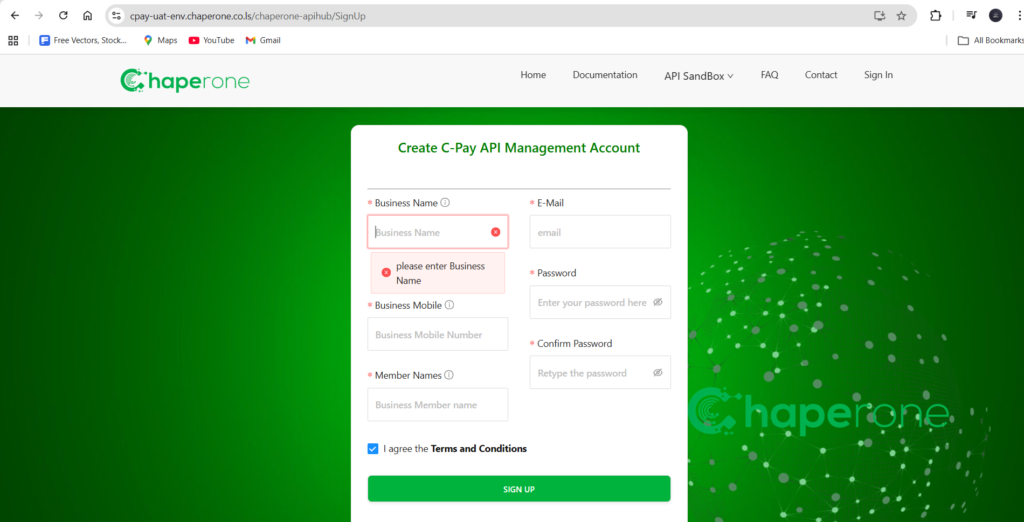
2. Create Your API Hub Account
- Visit the Chaperone API Hub: https://cpay-uat-env.chaperone.co.ls/chaperone-apihub/SignIn
- Sign up or log in with your merchant credentials.
- This account is required to generate and manage your C‑Pay Merchant credentials, which you’ll use during plugin configuration.
📥 Step 1: Install the Plugin
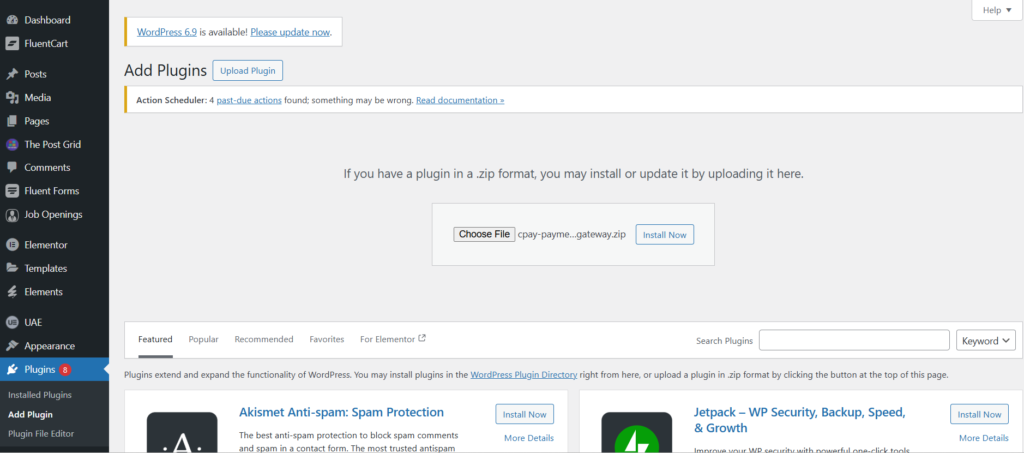
Method 1: WordPress Admin (Recommended)
- In your WordPress dashboard, go to Plugins → Add New.
- Click Upload Plugin.
- Select the file:
cpay-card-payments-for-woocommerce.zip. - Click Install Now.
- Once installed, click Activate.
Method 2: Manual Installation for CPay Payment Gateway
- Upload the
cpay-card-payments-for-woocommercefolder to/wp-content/plugins/. - Go to Plugins in your WordPress dashboard.
- Find C‑Pay Payment Gateway and click Activate.
⚙️ Step 2: Configure the Plugin
Connect to C‑Pay
- Go to WooCommerce → Settings → Payments.
- Find C‑Pay in the list and click Manage/Set up.
- Enter your C‑Pay Merchant credentials (provided by Chaperone).
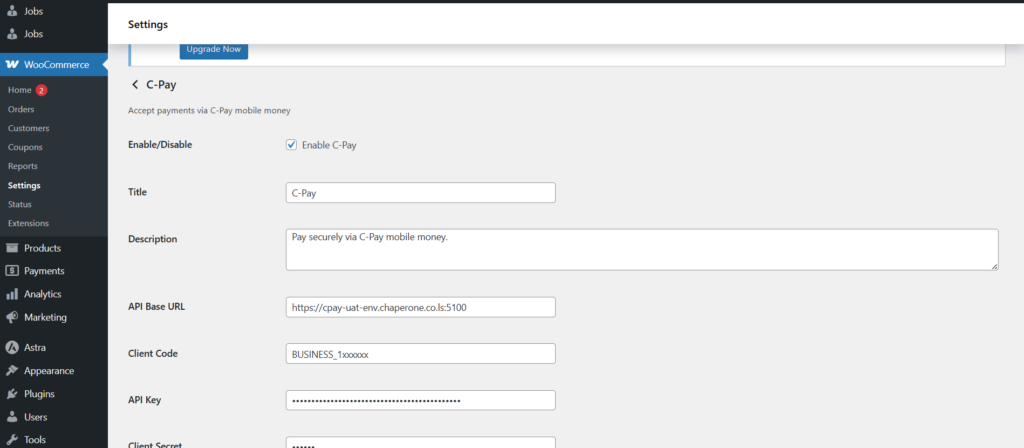
Customize Settings
- Title: e.g., “Pay with C‑Pay” (this is what customers see at checkout).
- Description: e.g., “Pay securely via C‑Pay mobile money.”
- Enable/Disable: Toggle the payment method on or off.
❓Frequently Asked Questions
1. Is the plugin free?
Yes, it’s free to install and use. Standard C‑Pay transaction fees apply.
2. How do I get C‑Pay Merchant credentials?
Visit the Chaperone API Hub to get the merchant credentials
3. Where to find Sandbox Test card Details?
You can find sandbox test cards here. There are sanbox transactions and won’t charge you in realtime.
3. How to go live?
After successfully testing on the sandbox, you can fill in the Test Case Form found here and submit it to the Chaperone team for review.
How to Register a Live Merchant?
Contact the Chaperone Team to register the live merchant at:
Email: info@chaperone.co.ls
WhatsApp: https://wa.me/26658408328
Toll-Free (Lesotho only): +266 800 13077
🎯Final Thought
The C-Pay Card Payments Plugin makes it easy for WooCommerce merchants in Lesotho to accept Visa and Mastercard payments securely and reliably. With real-time payment confirmation, secure card processing, and seamless order management, you can focus on growing your business while giving customers a smooth, trusted checkout experience.