🚀How to Set Up the CPay Payment Gateway in WooCommerce


Accepting mobile money payments in Lesotho has never been easier. With the C‑Pay Payment Gateway plugin, WooCommerce store owners can securely process transactions via USSD or the C‑Pay mobile app — all licensed by the Central Bank of Lesotho.
In this guide, we’ll walk you through the installation, configuration, and usage of the plugin step by step.
🔒 Why Choose C‑Pay?
- Secure Payment Processing — backed by Central Bank of Lesotho licensing.
- USSD & App Support — customers can pay however they prefer.
- OTP Verification — adds an extra layer of transaction security.
- Real‑time Notifications — instant updates on payment status.
- Automatic Order Management — WooCommerce orders update as payments clear.
- Mobile‑Optimized Checkout — smooth experience on any device.
- Detailed Reporting — transaction logs for easy reconciliation.
✅ Prerequisites
1. Download the Plugin
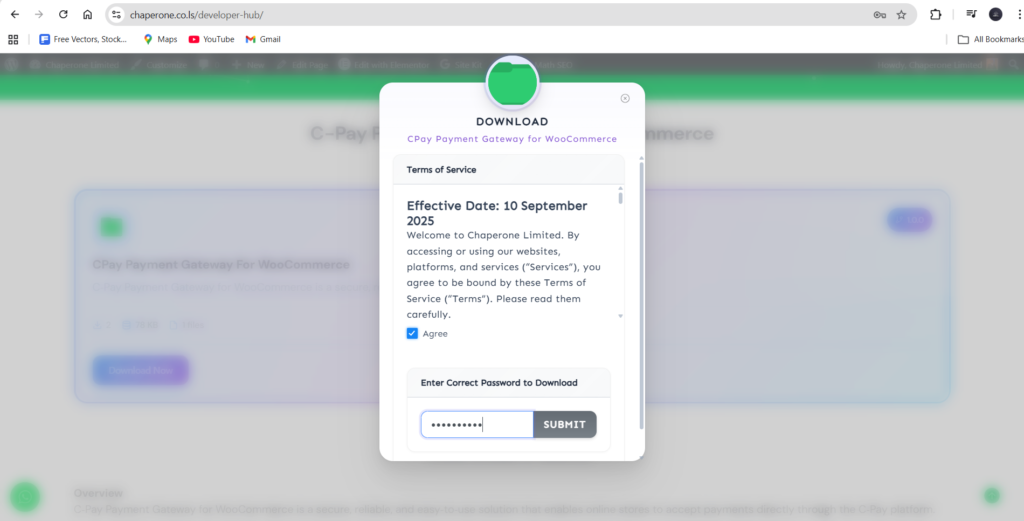
- Visit the official Chaperone Developer Hub: https://chaperone.co.ls/developer-hub/
- Enter the password:
dFquAAUpSFto access the download. - Save the file
cpay-payment-gateway.zipto your computer.
2. Create Your API Hub Account
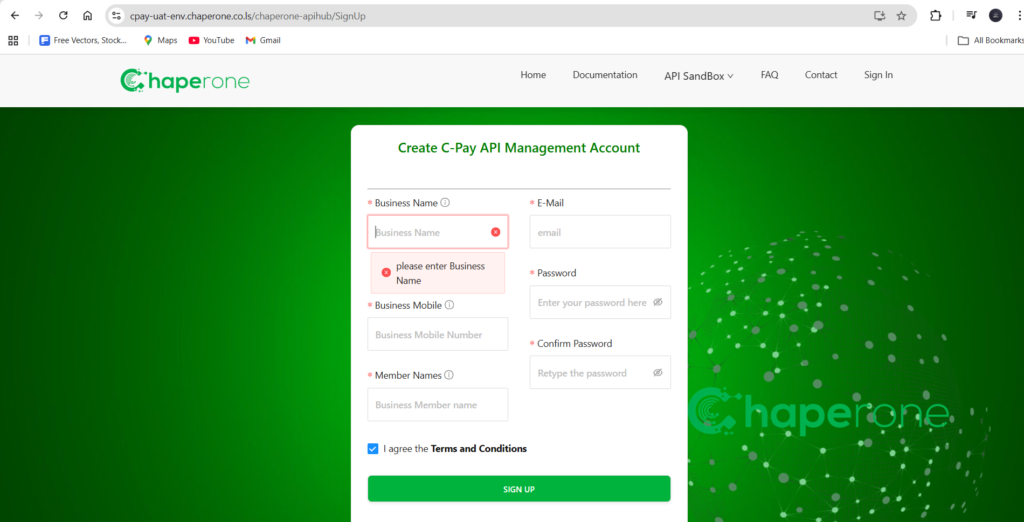
- Go to the Chaperone API Hub: https://cpay-uat-env.chaperone.co.ls/chaperone-apihub/SignIn
- Sign up or log in with your merchant credentials.
- This account is required to generate and manage your C‑Pay Merchant credentials, which you’ll use during plugin configuration.
📥 Step 1: Install the Plugin
Method 1: WordPress Admin (Recommended)
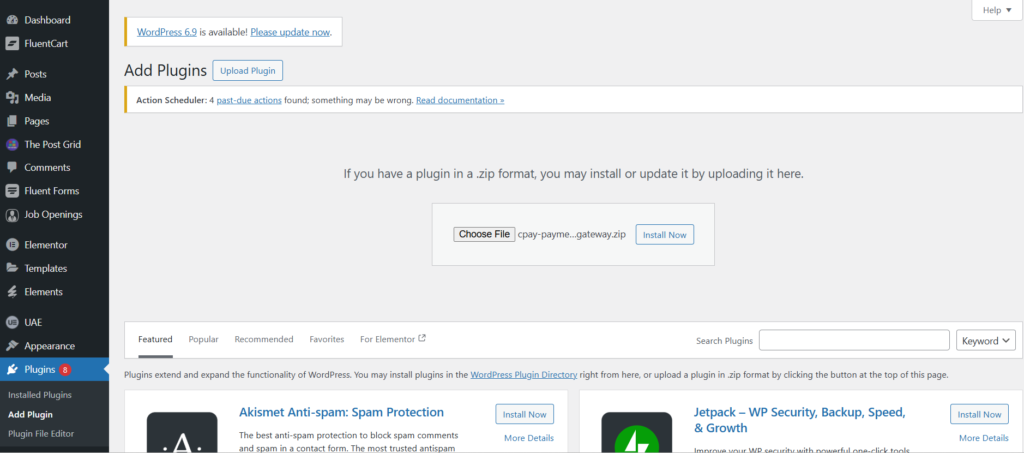
- In your WordPress dashboard, go to Plugins → Add New.
- Click Upload Plugin.
- Select the file:
cpay-payment-gateway.zip. - Click Install Now.
- Once installed, click Activate.
Method 2: Manual Installation for CPay Payment Gateway
- Upload the
cpay-payment-gatewayfolder to/wp-content/plugins/. - Go to Plugins in your WordPress dashboard.
- Find C‑Pay Payment Gateway and click Activate.
⚙️ Step 2: Configure the Plugin
Connect to C‑Pay
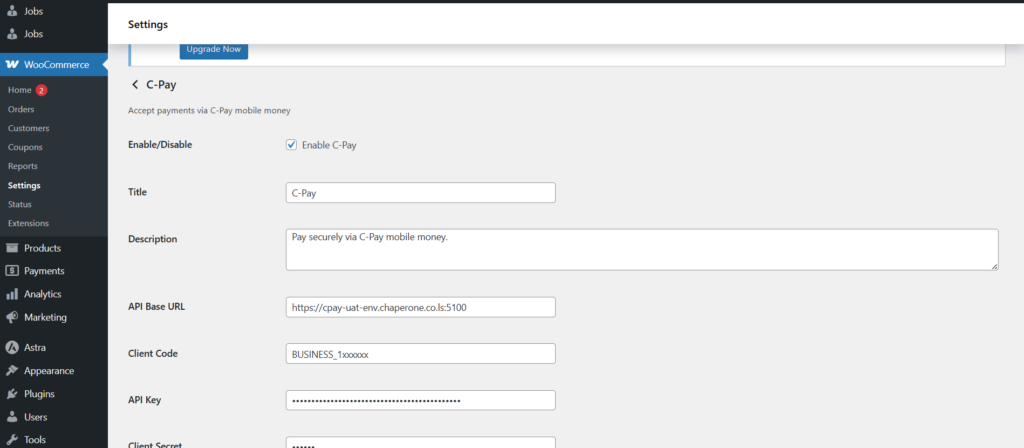
- Go to WooCommerce → Settings → Payments.
- Find C‑Pay in the list and click Manage/Set up.
- Enter your C‑Pay Merchant credentials (provided by Chaperone).
Customize Settings
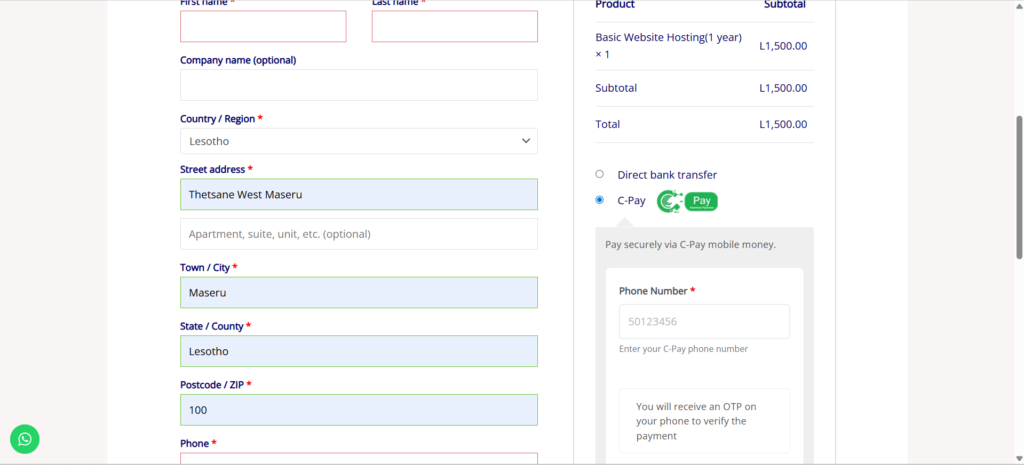
- Title: e.g., “Pay with C‑Pay” (this is what customers see at checkout).
- Description: e.g., “Pay securely via C‑Pay mobile money.”
- Enable/Disable: Toggle the payment method on or off.
❓Frequently Asked Questions
1. Is the plugin free?
Yes, it’s free to install and use. Standard C‑Pay transaction fees apply.
2. How do I get C‑Pay Merchant credentials?
Visit the Chaperone API Hub to get the merchant credentials
3. How to go live?
After successfully testing on the sandbox, you can fill in the Test Case Form found here.
How to Register a Live Merchant?
Contact the Chaperone Team to register the live merchant at:
Email: info@chaperone.co.ls
WhatsApp: https://wa.me/26658408328
Toll-Free (Lesotho only): +266 800 13077
📝 Changelog
- v1.0.1 — Added Nonce verification for improved security; sanitized input data.
- v1.0.0 — Initial release.
🎯 Final Thoughts
The C‑Pay Payment Gateway plugin makes it simple for WooCommerce merchants in Lesotho to accept mobile money payments securely and reliably. With real‑time notifications, OTP verification, and seamless order management, you can focus on growing your business while offering customers the convenience they expect.